Help an AI assistant read the design closely before it builds the page
One design can hold several versions of the same page. I made Figma Lens so an AI coding assistant can choose the right screen, read its details and compare the finished page with it in a browser.
In short
One design file can hold several versions of the same page, and an AI coding assistant that starts from the wrong one carries that mistake into every detail. I made Figma Lens so it can choose the right screen, read its labels, spacing and fonts up close, and compare the finished page with it in the browser. Setup steps are included.
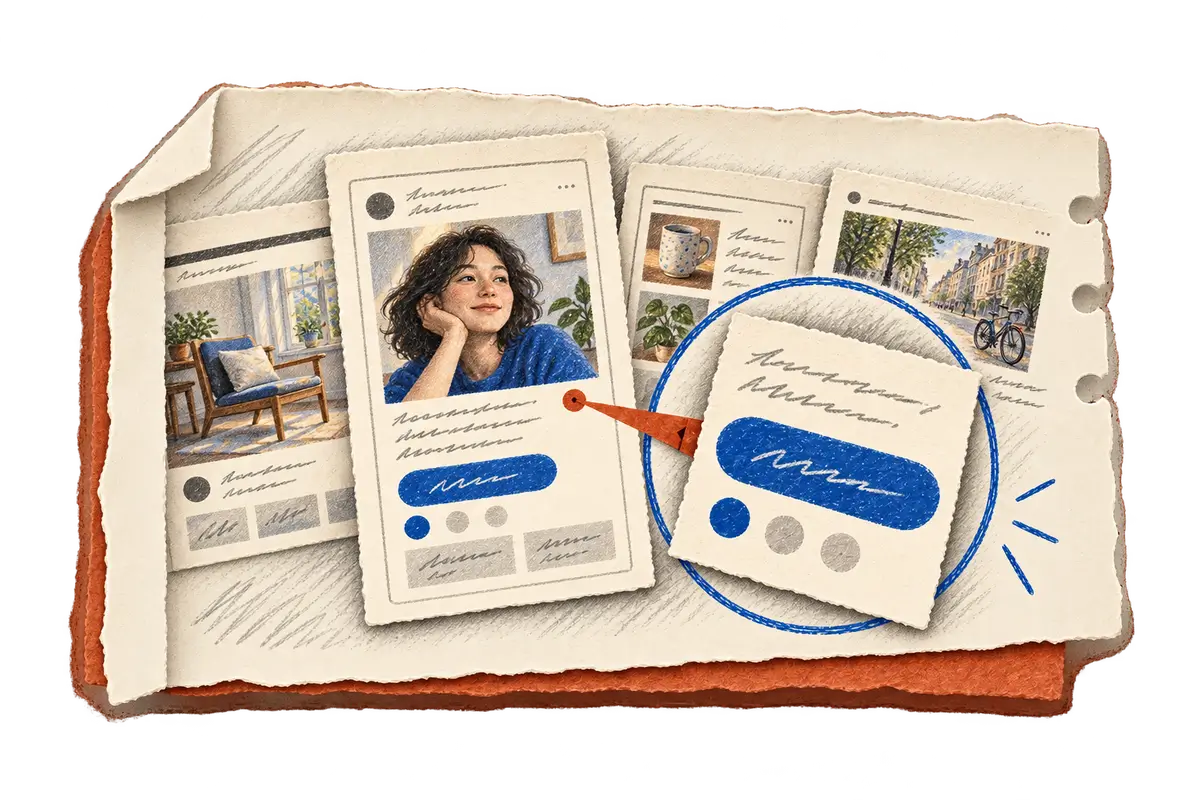
Picture a design board with two screens side by side. The first shows a page still waiting for results and the second shows the same page once it is full, while below them sits a phone layout that arranges everything differently. Before anyone builds the page, someone has to decide which of these the request means, and then look at that one screen closely enough to get its labels, spacing and fonts right.
That first look is easy to skip when the next step is handing the work to a coding agent, an AI assistant that can read and change code. The agent can start right away, and if it starts from a small overview or from the wrong state, that uncertain reference travels with it into every later detail of the page.
What I wanted was for the agent to pause at exactly that point: pick one screen, read it up close, and keep using it as the reference once the page runs in a browser. I made Figma Lens to give that first look a shape.
What Figma Lens is
The board from the opening lives in Figma, an app for designing interfaces, and any screen on it can be shared as a Figma link. Figma Lens is a command-line tool, which means the agent runs it by typing a command in the terminal, the same way it runs tests. Given that link, it retrieves images and design information for just the area being inspected, and it works without Figma Desktop, the app's desktop version. Each result suggests follow-up commands, so the agent can move from the whole board to one screen and then to a smaller detail, much like holding a magnifying glass over a printed board: find the right screen first, then lean in to read it.
Alongside the tool comes a companion skill, a set of written instructions the agent loads before it begins. It lays out the order of the work: choose a screen, inspect its details, then compare the finished page with that screen.
When the agent opens the design link
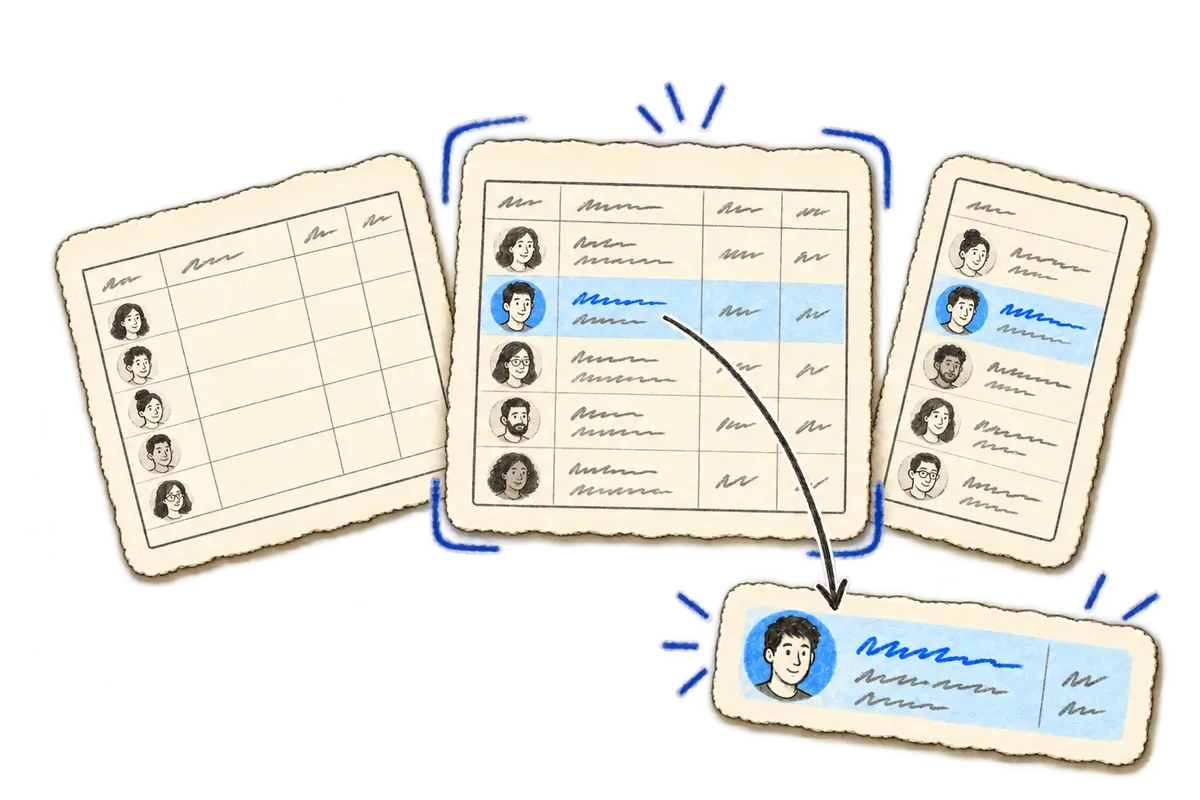
Back on the board from the opening, the first job is choosing. An overview of the whole board shows the waiting state, the full one and the phone layout side by side, so the skill asks the agent to choose the screen the request means before it gathers any detailed evidence. A view of that whole screen then helps locate a card or a dialog, and every detail the agent reads afterwards belongs to the screen it is actually building.
When the agent needs the details
From there the agent moves closer to each element: a close view lets it read the labels and inspect the spacing, and the skill also asks it to check the exact font family and weight, reuse the exported assets and copy the words from that selected state.
When the page runs in the browser
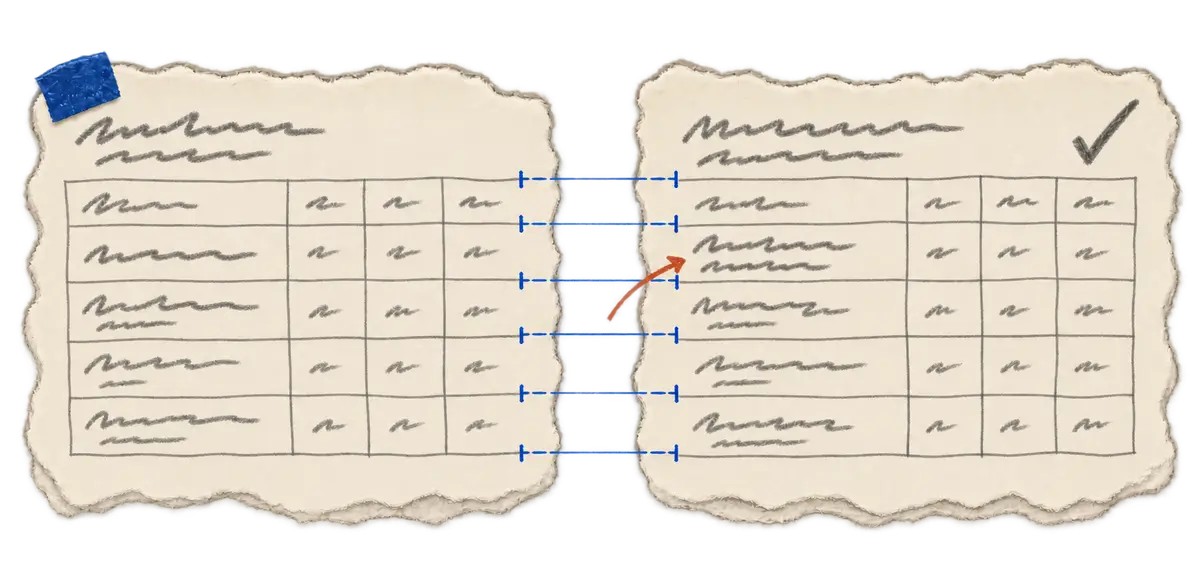
Once the page runs, the same reference comes back into use. The skill asks the agent to compare a browser screenshot at the same dimensions as the design and to check the visible text separately. In the picture below, lining up the two jobs tables shows a title that wraps differently in the page under review.
The dashboard story follows this process through a page with a chart and a jobs table, and it shows why a readable close view can settle questions that a small overview leaves open.
My part, and where it stands
I lead Figma Lens's development and set the inspection sequence described above. Coding agents produced much of the implementation, and my part is reviewing their code changes and trying the workflow myself to check that the agent uses the intended design and opens the images it needs. That last check is the one I would suggest to anyone trying something similar, because the tool can return the right images and the agent still has to open them before they help. The setup steps, requirements and limits are below.
Install Figma Lens and inspect a board
Take a first look
The documented setup requires Node.js 20 or newer and a Figma account with access to the file.
npm install --global figma-lens
figma-lens --version
Create a Figma personal access token with file_content:read and current_user:read. Enter it through the terminal's hidden prompt:
figma-lens auth login
figma-lens doctor
Use the file's own link in place of the example:
figma-lens scout "https://www.figma.com/design/FILE_KEY/File?node-id=1-2"
Open the overview returned by the command. Its result identifies discovered states and suggests where to look next. If the link points to an exact screen, extract also accepts an intent describing the target.
Results live in .figma-lens/. Keep that directory out of version control because its images and cached data may include private designs.
Give the agent the full workflow
Install the companion skill:
npx -y skills@latest add khanglvm/figma-lens --skill figma-lens --global --yes
A request can make the expected inspection explicit:
Use the figma-lens CLI and its skill to inspect this Figma link: <link>.
Open the screenshots, identify the relevant screen state, and inspect its
important details before coding. Check the required fonts and reuse the
exported assets. Compare the finished UI with the source in a browser.
Focused queries reuse the cache and keep the whole layer tree out of the conversation. The agent needs image-viewing support and must open the returned files. Figma can name a font, but the destination website still needs an available, licensed font file and a check that it loads. Account permissions and API limits apply. The CLI cannot read an unsaved local .fig file.
The project is independent of Figma and the separate Lens • Find & Select Text plugin. The design-to-code guide covers inspection and verification; npm hosts the package.